How to Check if Your O’level Result has Been Uploaded on JAMB CAPS Portal
How to Check if Your O’level Result has Been Uploaded on JAMB CAPS Portal: A key requirement for admission is uploading a candidate’s O’level result on the JAMB portal. Failure to do so can lead to disqualification. Below is a simple guide to check if your O’level result has been successfully uploaded.
In this Blog post I’m going to show you how to How to Check if Your O’level Result has Been Uploaded on JAMB CAPS Portal, Following the directives from Joint Admission and Matriculation Board (JAMB), no candidate with awaiting O’level (WAEC, NECO, NABTEB) result will be admitted into any tertiary institution in 2026/2027.
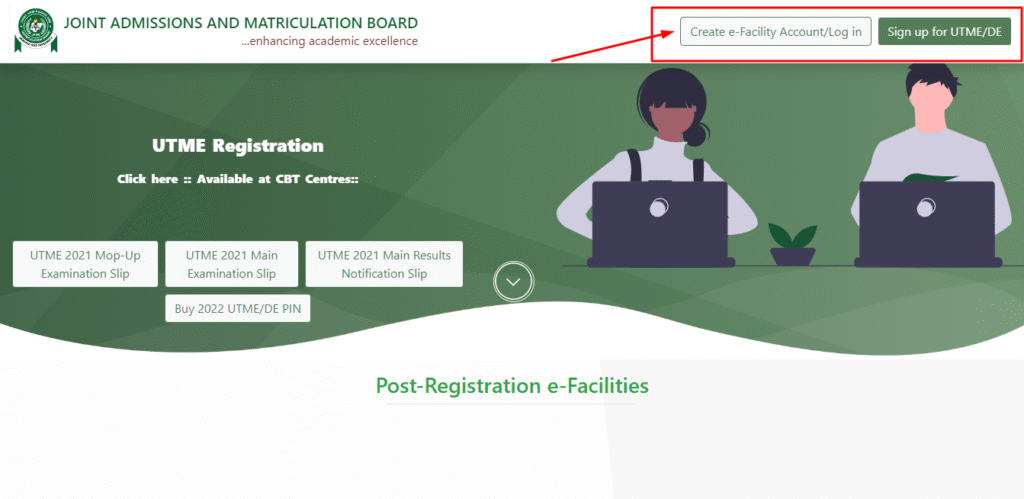
Step 1: Visit the JAMB e-Facility Portal
To visit the JAMB e-Facility portal, open your web browser and go tohttps://efacility.jamb.gov.ng. Enter your registered JAMB email address and password to log in and access your profile and other services. If you don’t have an account, you’ll need to create one by following the on-screen instructions.
Step-by-step guide:
- Open your browser: Launch any web browser on your computer or smartphone.
- Go to the website: Type the following URL into your browser’s address bar and press Enter: https://efacility.jamb.gov.ng.
- Log in: On the login page, enter your registered JAMB email address and password in the designated fields.
- Access your account: Click the “Login” button to access your personalized dashboard.
- Create an account (if needed): If you are a new user, click on the “Create an Account” or “Sign Up” link and follow the prompts to register.
Step 2: Click on the “Check Admission Status” Tab
After logging in, scroll down the dashboard until you locate the tab labeled ‘Check Admission Status.’ This tab is designed to guide candidates into the CAPS section of the portal where admission-related information is stored.
Step 3: Access Your Admission Status Page
To access your admission status page, log in to your institution’s student portal or the JAMB eFacility portal at efacility.jamb.gov.ng. You will need your registration number and/or login credentials, and in some cases, an admission checker PIN purchased from designated banks. Follow the prompts to find the “Check Admission Status” service to view your status.
Step 4: Click on “My O’level”
On the CAPS dashboard, click the ‘My O’level’ tab on the left menu to check your O’level upload status. This JAMB feature helps students confirm if their results are properly documented.
Step 5: Confirm the Display of Subjects and Grades
To confirm your JAMB O’Level subjects and grades, visit the JAMB e-Facility Portal, log in with your email and password, click “Check Admission Status,” then “Access my CAPS,” and finally “My O’level Result”. Your subjects and grades will be displayed if the upload was successful; if not, you will see “No O’level result uploaded” or similar.
Step 6: Visit a JAMB-Accredited CBT Centre if Missing
You JAMB-Accredited CBT Centre when missing a detail, go to any accredited centre with your profile code and the specific information you need to retrieve or change. You can retrieve your profile code by sending “RESEND” to 55199 or 66019 from your registered phone number. You can also use the “Profiled Email Recovery” system for certain issues, or visit the support portal at support.jamb.gov.ng to raise a ticket.
How To Upload O’Level Results On JAMB Portal
- Head to the official JAMB portal at efacility.jamb.gov.ng.
- Use your JAMB registration number and password to access your account.
- On the dashboard, click on “Check Admission Status.”
- This will take you to the JAMB Central Admissions Processing System (CAPS).
- You will find an option to upload your O-Level results in this section.
- Choose your exam type (WAEC, NECO, NABTEB, etc.) and the year you sat for the exam from the dropdown menu.
- Ensure the scanned document is clear, in JPEG or PNG format, and doesn’t exceed 50KB in size.
- Review the details, verify that everything is accurate, and then submit the result.
After uploading your O-Level results, it’s very important to double-check that everything went through successfully. Here is how to check if your results have been uploaded:-
- Visit the JAMB eFacility portal by going to https://efacility.jamb.gov.ng/.
- Log in with your email and password.
- Click on “Check Admission Status” on your dashboard.
- Next, click on “Access My CAPS”.
- Inside CAPS, select “My O’Level Result”.
Once you open the “My O’Level Result” section, you will see a list of your subjects and the grades you uploaded.
- If your grades are showing correctly, it means your upload was successful.
- If you see “AR” (Awaiting Result) or it’s blank, it means the upload didn’t go through, and you need to upload your result again.
- RELATED POST
- How to Print JAMB Admission Letter 2026/2027
- JAMB Accredited CBT Centres in Lagos State 2026/2027
- JAMB Accredited CBT Centers 2026/2027 in Nigeria
- JAMB Cut-Off Mark for Entrepreneurship 2026/2027
- JAMB Cut-Off Marks 2026/2027 For All Courses
- JAMB CAPS Portal 2026/2027-How To Accept Or Reject Admission
- JAMB Reprint Exam Slip 2026/2027: Date, Deadline, Portal Guide
- How to Create JAMB Profile Using USSD, SMS & Online Method 2026/2027
- How to Create JAMB Profile Using USSD, SMS & Online Method 2026/2027
- JAMB Marking Scheme 2026/2027 Grading System
- JAMB Brochure & Syllabus 2026/2027 For All Courses System (IBASS)
- JAMB Registration Requirements For 2026/2027
- JAMB Syllabus 2026/2027 For All Subjects & Textbooks [IBASS System]
- JAMB Registration 2026/2027 Form,Fee, Date,Deadline & Guidelines

How To Pass JAMB 2026/2027 With High Score (350 & Above)

JAMB Accredited CBT Centres in Rivers State 2026/2027

JAMB Cut-Off Mark for Agricultural Economics 2026/2027
About Author
